
Action & Event
Set "when this happens → do this", e.g. when this gift arrives, play a sound, show an image, or control the camera — automation for your LIVE
Free download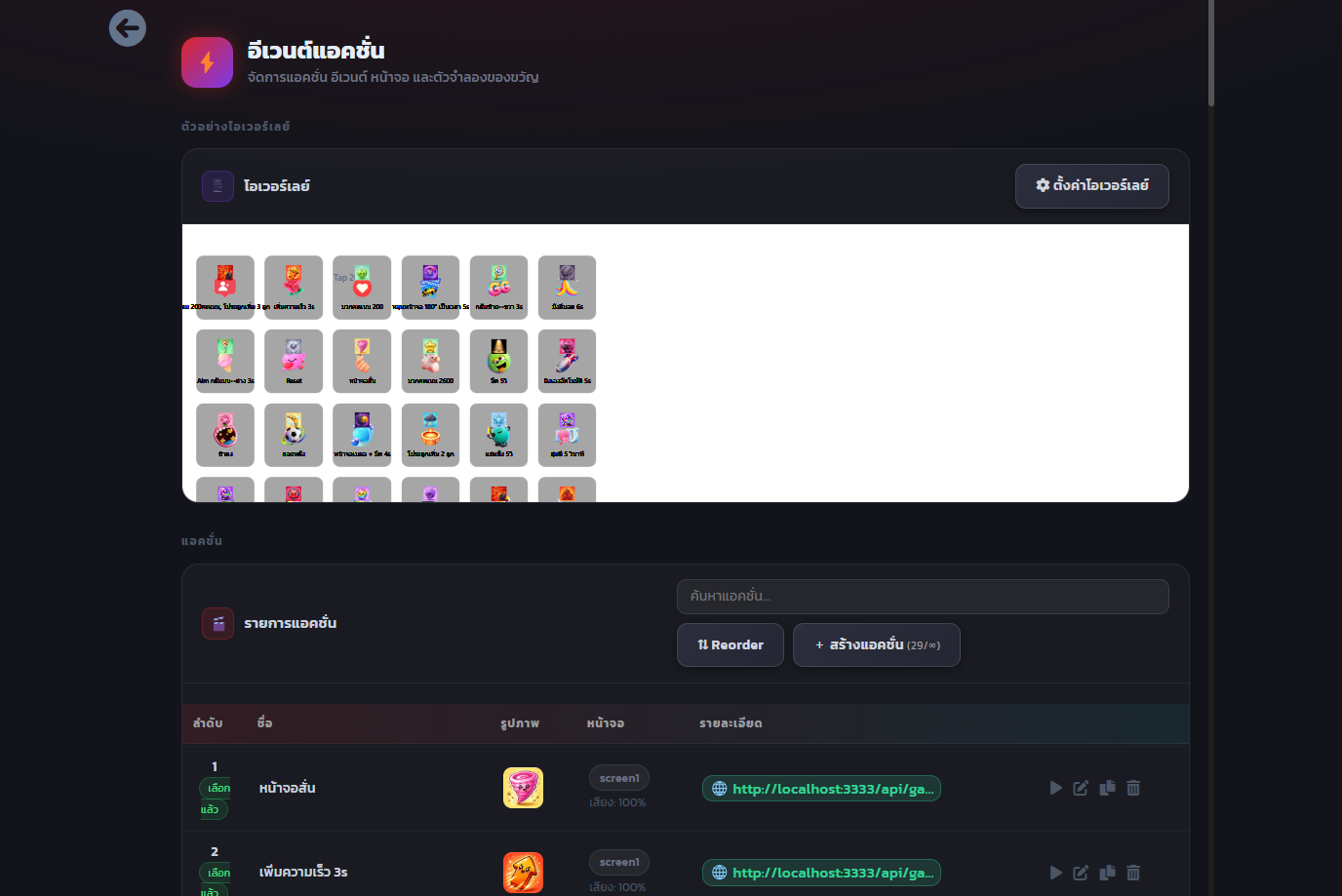
The index shows the Action page and how each action is set up, e.g. volume, which overlay it shows on, which button, which webhook, and so on
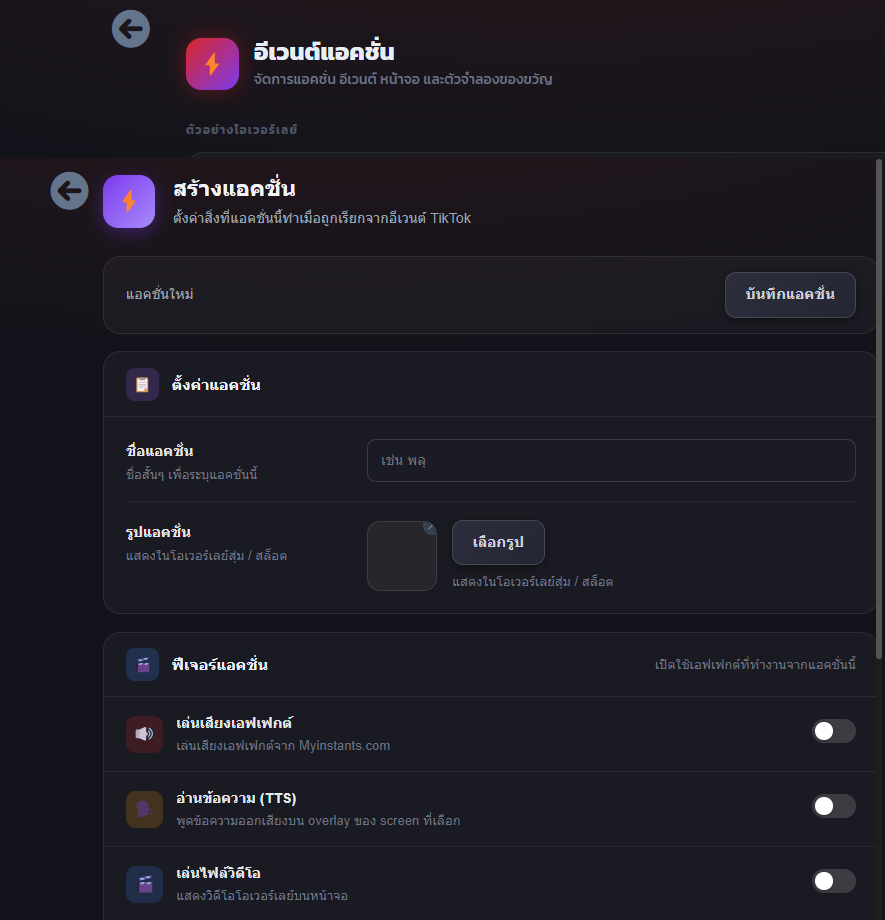
Sets what happens when an action plays, e.g. show a video, play a sound, or auto-press a keyboard key
which webhook, what Minecraft command to run, and so on
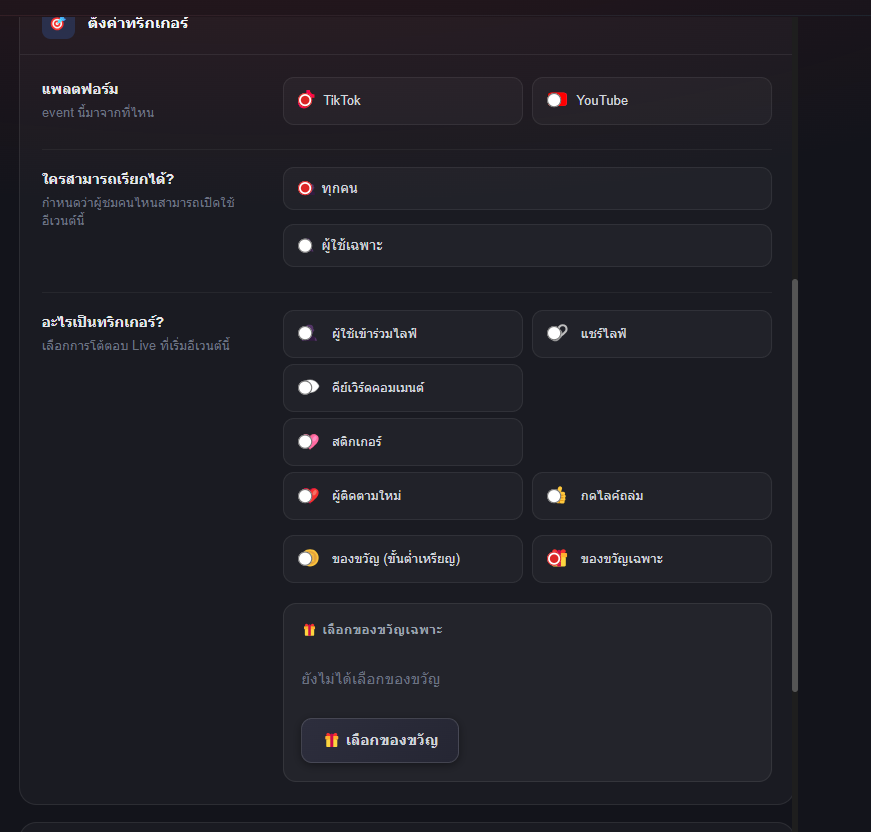
Currently works with TikTok, YouTube and donations — you can set which action plays for each donation amount.
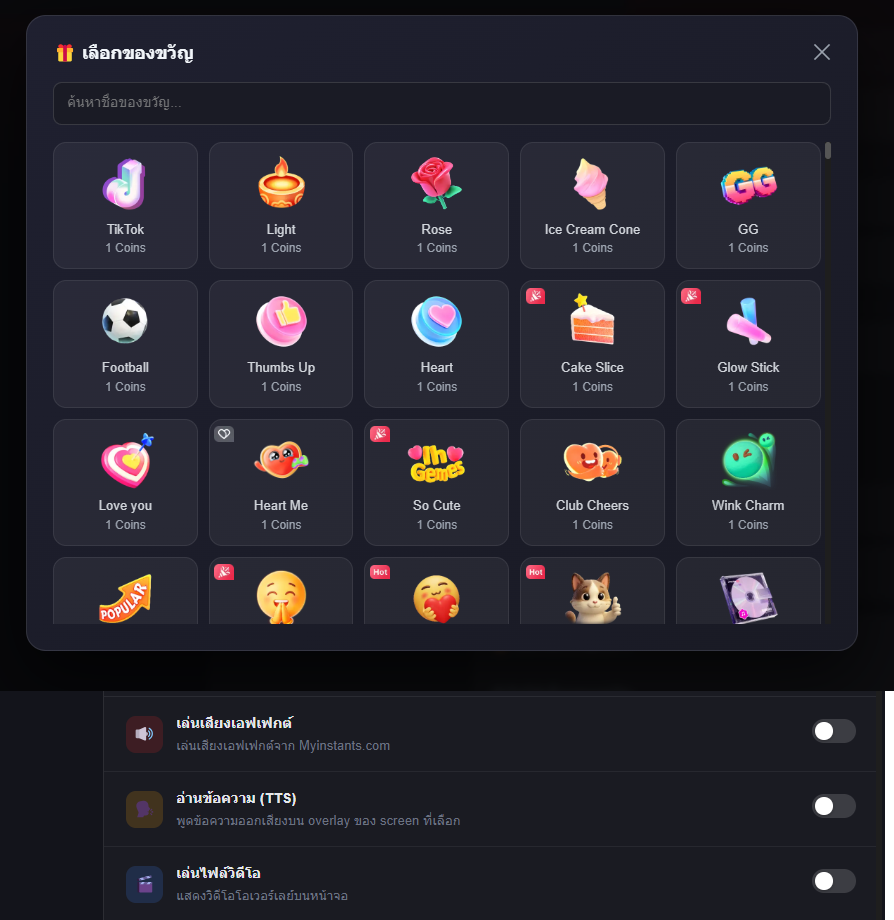
Or choose which gift triggers which action
What is an Action?
An action is an "automatic command" you set up in advance. When something happens on your LIVE, like a viewer sending a gift, following, or you pressing a hotkey, it runs instantly the way you set it up: play a sound, play a video, show an image/GIF, read text aloud, add/subtract points, or even control a game — all on its own, without you lifting a finger, so you can focus fully on your live stream
Sound & visual effects
Text-to-speech (TTS)
Game control & scoring
How to use
- Open the "Action & Event" menu
- Choose the event you want, e.g. keyboard key or key mapping, then pick the key you want
- Save, and the system runs automatically whenever the event happens
- then go set up the event under Create Event
FAG
Pay again
If you don't use it much, you don't need to pay — it's free to use
I set a sound but there's no audio
The action shows which overlay screen is selected

Copy that overlay to use it: in the example it's overlay screen1, so copy this screen into OBS or TikTok LIVE Studio
